Managing file transfers sounds simple until firewalls and NAT become part of the equation. FTP’s unusual two-channel architecture is the source of most connection problems — and also the key to configuring it securely on any platform.
This guide explains how FTP actually works, the critical difference between Active and Passive Mode, and the practical steps needed to open only the necessary ports while keeping the attack surface small. The principles apply equally to Windows, Linux, and other environments.
Why FTP’s Design Matters for Security and Firewalls
Traditional FTP predates widespread NAT and restrictive firewalls. It uses two separate connections:
- Command channel (normally port 21) – Handles authentication, directory listings, and transfer commands. This connection stays open for the entire session.
- Data channel – Carries the actual file contents. A new data connection is opened for every transfer and closed when it finishes.
Because the channels are independent, the client and server must negotiate which port the data channel will use. That negotiation is where Active Mode and Passive Mode diverge — and where most firewall issues arise.
Active Mode vs Passive Mode

Active Mode
- Client connects to the server on port 21 (command channel).
- Client tells the server which local port it will listen on for data.
- Server initiates a new connection from its data port to the client’s specified port.
This works on open networks, but modern client-side firewalls and NAT devices almost always block the unsolicited inbound connection from the server. As a result, Active Mode is unreliable for the majority of users behind corporate firewalls or home routers.
Passive Mode
- Client connects to the server on port 21.
- Client sends the PASV command.
- Server replies with its external (public) IP address and a port number chosen from a pre-configured range.
- Client opens a new outbound connection to that IP and port to transfer the data.
Because the client initiates the data connection, Passive Mode works reliably through NAT and firewalls. Only outbound connections are required from the client side, which are almost always allowed.
How Passive Mode Works Behind a NAT Firewall
When the FTP server itself sits behind NAT, two extra pieces of configuration are required:
- Masquerade (external) IP – The server must advertise the public IP address of the firewall/router rather than its private internal IP.
- Fixed passive port range – Instead of selecting random high ports, the administrator defines a limited range (for example 50000–51000 or 60000–61000). Only that range needs to be opened on the firewall.
Typical sequence:
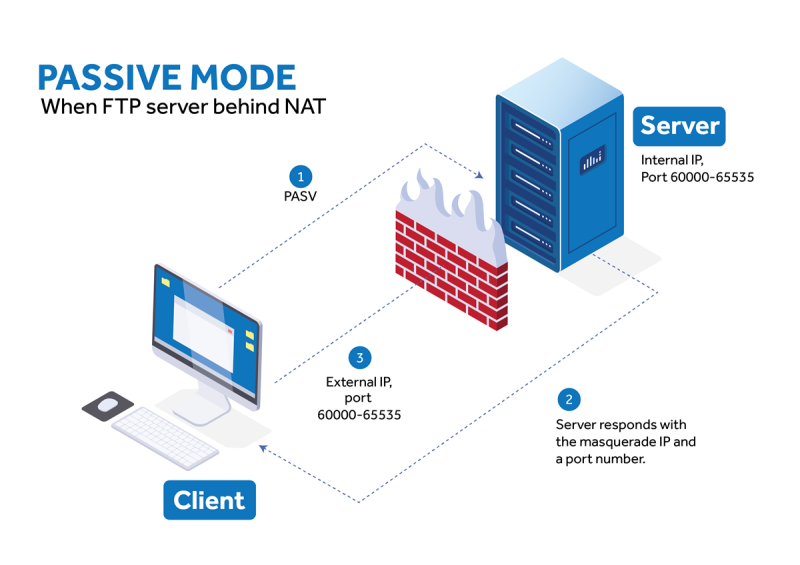
- Client sends PASV over the command channel.
- Server responds with the masquerade IP + a port from the defined range.
- Client connects to the public IP on that port.
- The firewall forwards the connection to the internal server.
A small, fixed port range keeps the exposed surface minimal and predictable on any operating system.
Configuring Passive Mode Securely (Cross-Platform)
Most modern FTP servers (including cross-platform solutions) let you set both the masquerade address and the passive port range in the same place — typically under the domain or FTP service settings.
Key settings to configure:
- External / masquerade IP address (the public-facing address clients will reach)
- Passive port range (keep it as narrow as practical)
- Optional: force the data connection to use the same IP family (IPv4/IPv6) as the command connection
Once those values are set, the server will consistently advertise a known address and a controlled set of ports.
Firewall Configuration Principles
Open only what is required:
- Inbound TCP port 21 (or the custom command port you chose)
- Inbound TCP for the exact passive port range you defined
Examples by platform:
- Windows – Create inbound rules in Windows Firewall for port 21 and the passive range. Avoid broad “FTP Server” predefined rules that open more than necessary.
- Linux – Use firewalld, ufw, or iptables/nftables to allow the same ports. On many distributions a simple pair of rules is sufficient.
- Cloud / hosted environments – Mirror the same limited ports in the security group or network ACL.
Never leave the entire ephemeral port range open. The whole point of defining a passive range is to make the firewall rules precise and auditable.
Enable Encryption (FTPS)
Encrypt both the command and data channels with TLS (FTPS). Require TLS for external connections and use a valid certificate. This protects usernames, passwords, and file contents without changing the underlying FTP protocol or port model.
Harden Access
- Create individual user accounts rather than shared credentials
- Assign the minimum necessary directory permissions
- Disable anonymous access
- Enforce strong passwords (and additional authentication methods where supported)
Test the Configuration
From a client outside the network:
- Authenticate
- List directories
- Upload and download files
- Confirm the data connection uses a port inside your defined range
- Verify that the session is encrypted
Best Practices
- Prefer Passive Mode for virtually all modern deployments
- Keep the passive port range as small as practical
- Document the exact ports and masquerade IP
- Review firewall rules and server logs regularly
- Keep the FTP server software updated
- Treat the passive range as part of your security baseline — change it only deliberately
Common Mistakes to Avoid
- Leaving the passive port range undefined or extremely wide
- Forgetting to set the masquerade IP when the server is behind NAT
- Relying on Active Mode for external clients
- Allowing unencrypted FTP from the internet
- Opening far more ports than the defined passive range requires
When to Consider Alternatives
FTP (even with FTPS) remains useful for compatibility and certain automated workflows. If you need a single-channel encrypted protocol that is simpler to firewall, SFTP (SSH File Transfer Protocol) is a different technology that runs over SSH, usually on port 22. The two should not be confused: SFTP does not use port 21 or Passive Mode.
Conclusion
Secure FTP configuration is less about opening random ports and more about understanding the dual-channel design. By choosing Passive Mode, defining a limited port range, advertising the correct external IP, enabling FTPS, and applying precise firewall rules, you can run a reliable and reasonably secure FTP service on Windows, Linux, or any other platform without unnecessary exposure.
The result is predictable firewall behavior, encrypted transfers, and a configuration that is easy to audit and maintain across environments.
FAQs
1. Which ports do I actually need to open?
The command port (normally 21) plus the exact passive data port range you configured. Nothing else is required for Passive Mode FTPS.
2. Is Passive Mode more secure than Active Mode?
Passive Mode is far more compatible with modern networks and allows tighter firewall rules. Overall security still depends primarily on using FTPS encryption and strong authentication.
3. Does the same configuration work on both Windows and Linux?
Yes. The Passive Mode settings (masquerade IP + port range) are the same; only the firewall tooling differs.
4. How often should I review the configuration?
Check firewall rules, passive port settings, certificates, and logs at least monthly, or after any network or server change.