

One of the approaches to strengthen the security of HTTPS/FTPS (secure FTP) server's logon process is to use SSL client certificate authentication. This step-by-step guide will show you how to configure Active Directory, TurboFTP Server, and the Client to use certificates.
Table of Contents
- Export RootCA certificate from CA console
- Import RootCA
- Create TurboFTP SSL Server certificate
- Configure TurboFTP Server to accept secure SSL connections
- Create and deploy user certificates
1. Export RootCA certificate from CA console
-
Open the Active Directory Certification Authority console.
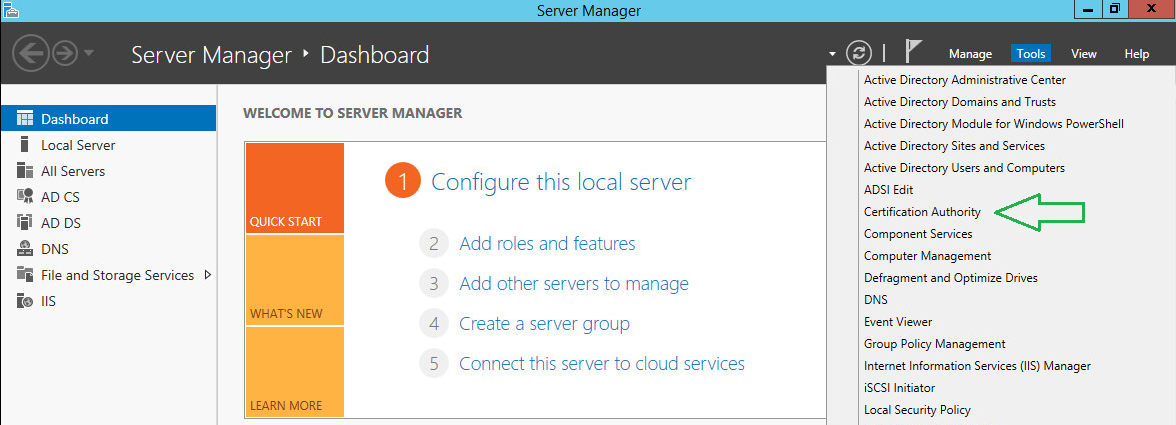
-
Right-click on the CA and choose Properties.
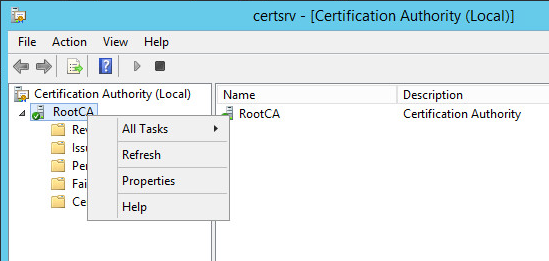
-
On the General tab, click View Certificate.
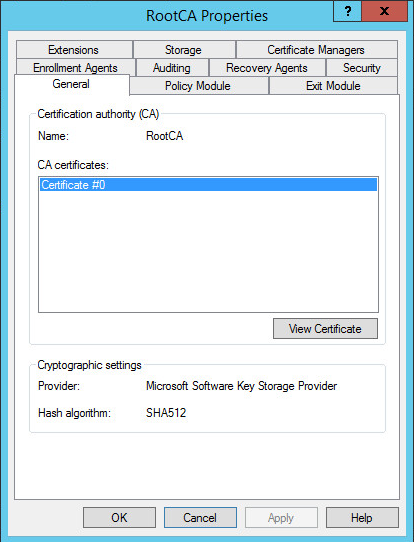
-
Click on the Copy to File button to initiate the export wizard.
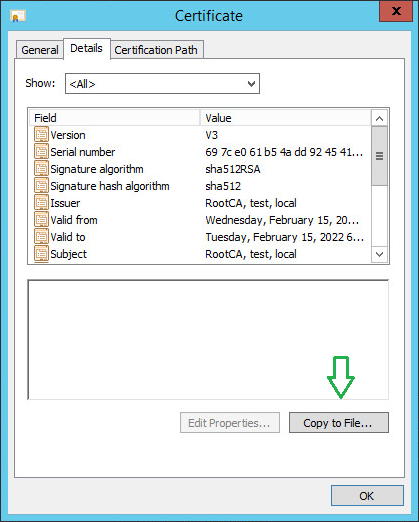
-
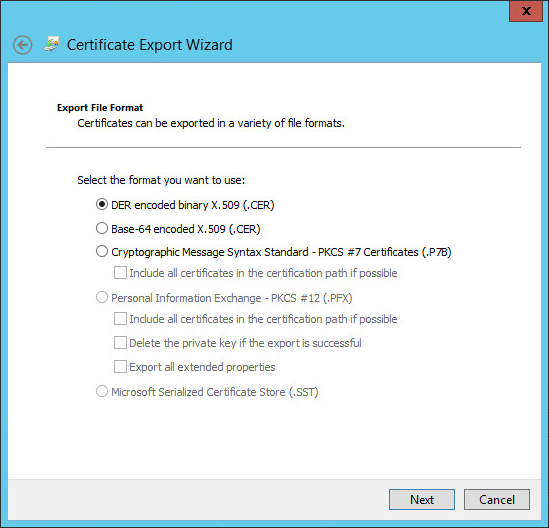
Leave the default file format and click Next.
-
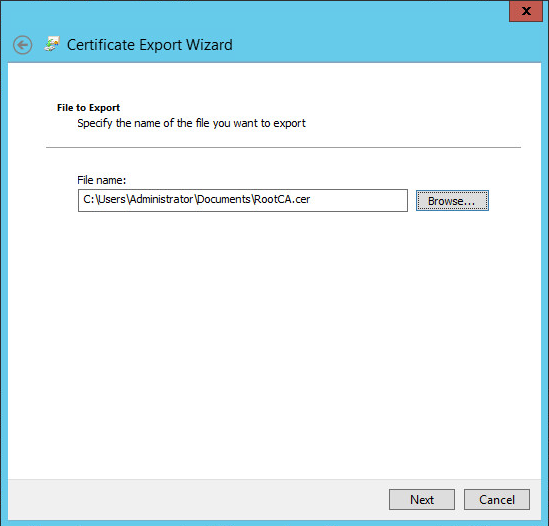
Click Browse and provide a local path where the CA certificate will be stored.
-
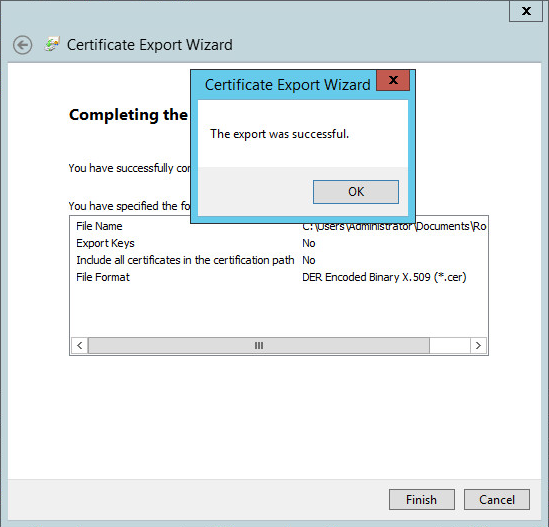
Click Next and confirm your export operation. Once finished, you will see an affirmative success message.
2. Import RootCA certificate to TurboFTP Server
-
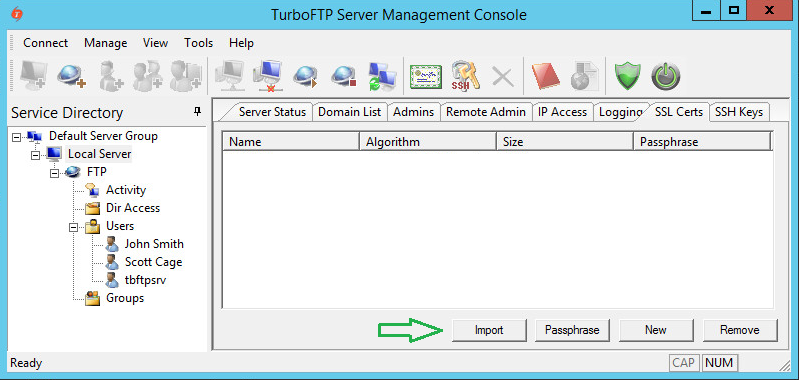
In the TurboFTP Server management console, click on Local Server.
-
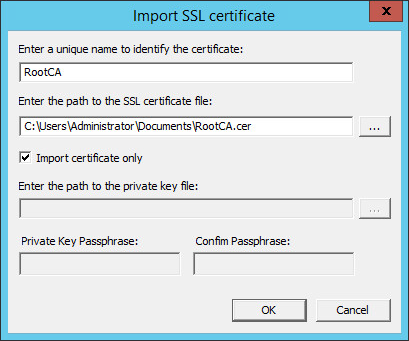
Switch to the SSL Certs tab and click Import.
-
Provide a name and the file path to the certificate, then click OK.
3. Create TurboFTP SSL Server certificate
-
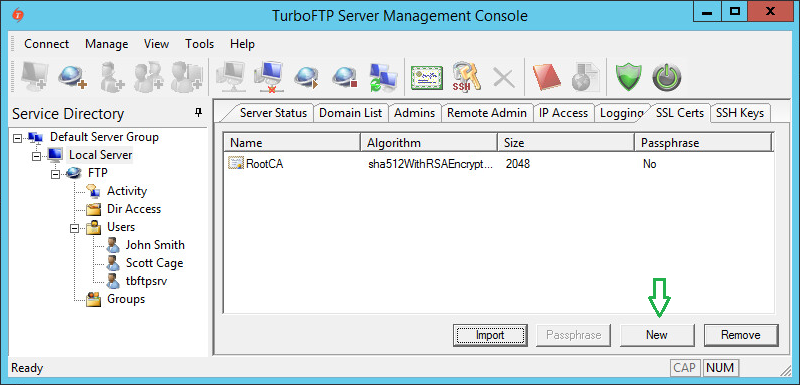
Click on the New button to create a new SSL certificate for the server.
-
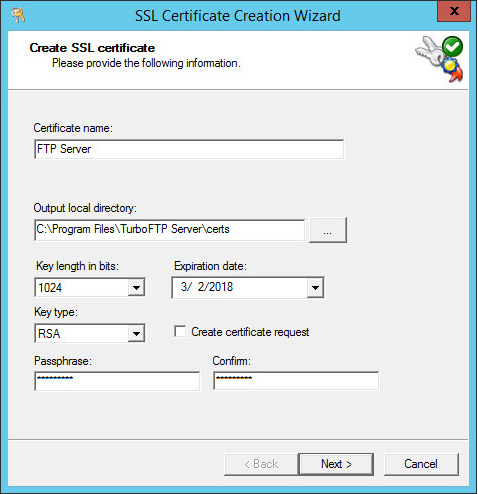
Provide a certificate name and passphrase (default values are usually sufficient for other options).
-
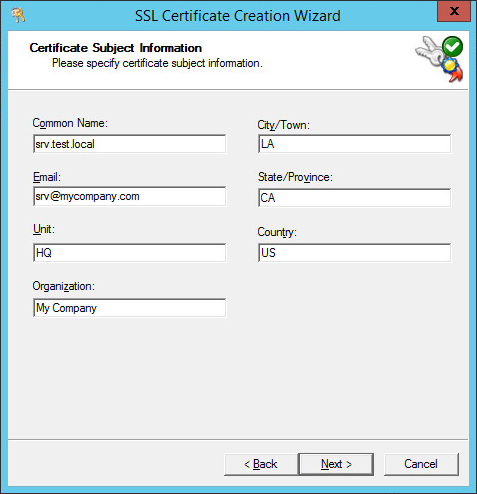
Provide the Certificate Subject Information (Organization, Common Name, etc.).
-
Click Next to generate the certificate file.
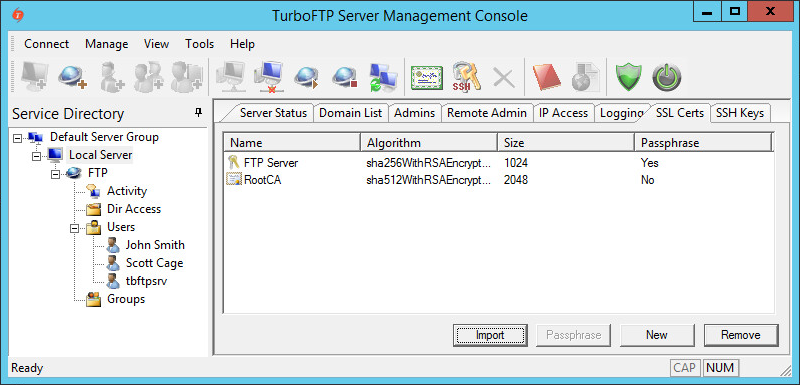
4. Configure TurboFTP Server to accept secure SSL connections
-
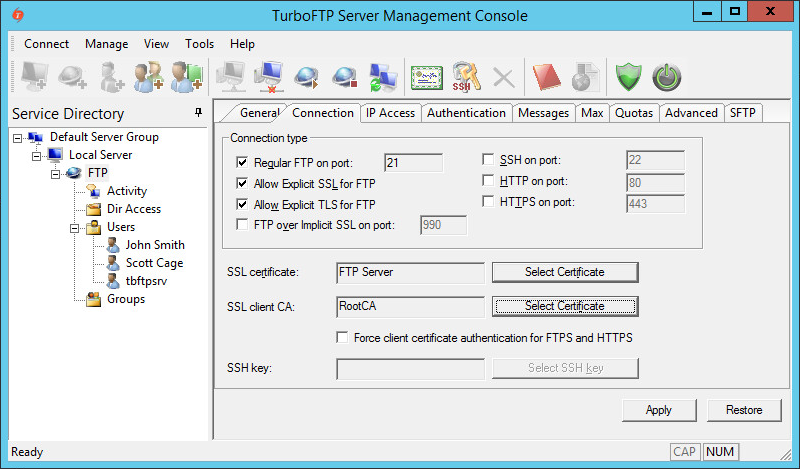
Click on FTP Server, navigate to the Connection tab, and enable Allow Explicit SSL for FTP or Allow Explicit TLS for FTP. Select the appropriate certificates from the dropdown menus.
5. Deploy User Certificates
To automatically enroll clients for certificates in a Windows domain environment, use Group Policy certificates auto-enrollment by following the official Microsoft guide.
Note: This is a guide for setting up SSL client certificate authentication. This function is not limited to Active Directory users. You can use any third-party CA certificate and distribute client certificates signed by the CA to users regardless of their authentication source (Internal Database, ODBC, LDAP, etc.).