

TurboFTP Server allows you to quickly set up a file server to securely serve files through different protocols like HTTPS, FTPS, or SFTP/SCP. You can use a network share as a domain's root or a Virtual Folder. This guide will show how to configure TurboFTP Server to use a network share as a virtual folder.
Impersonation configuration with Linux SAMBA share
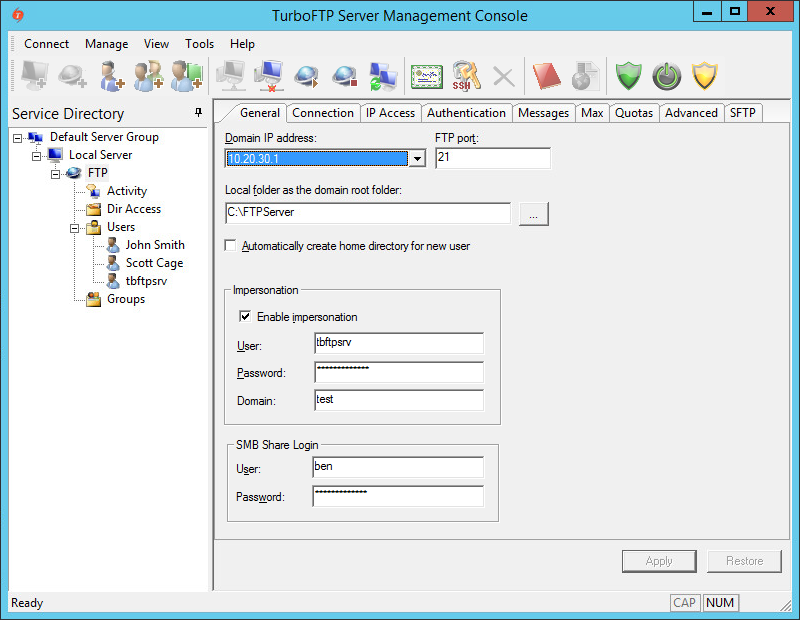
TurboFTP Server running on Windows must impersonate a logged-on user to access a network share. To do so, click on the domain in the left pane (FTP in this example), tick on Enable impersonation checkbox, and provide User, Password, and Domain. The impersonated user is an account that can log into the system where TurboFTP Server is running and requires no administrator privileges. It is also required to fill in the SMB Share Login credentials if the share is protected by username/password.
We demonstrate the configuration on Ubuntu 14.04 with an existing Linux user, 'ben'.
# install Samba service
sudo apt-get update
sudo apt-get install samba

# add a Samba user 'ben'
sudo smbpasswd -a ben

# create a folder to be used as the Samba share
mkdir /home/ben/sambashare

# modify smb.conf to allow share access
sudo vi /etc/samba/smb.conf

# Add the following in the end of /etc/samba/smb.conf:
[sambashare]
comment = Samba on Ubuntu
path = /home/ben/sambashare
read only = no
browsable = yes

# Restart Samba service
sudo service smbd restart
In TurboFTP Server's Domain -> General tab, put Samba user 'ben' credentials into SMB Share Login. Then restart the domain. You can now test the network share access by populating the root or virtual folder in the Dir Access tab.
Configuring VFolder
-
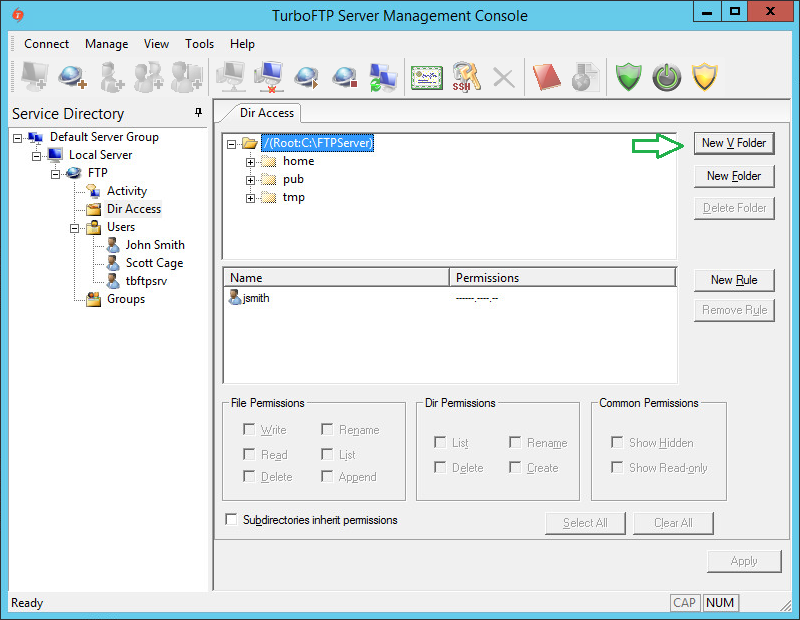
To configure VFolder to use a network share, click on DirAccess in the left pane and then the New VFolder button.
-
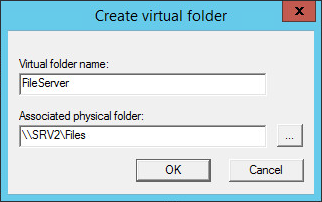
Provide Virtual Folder Name and Associated physical folder path.
-
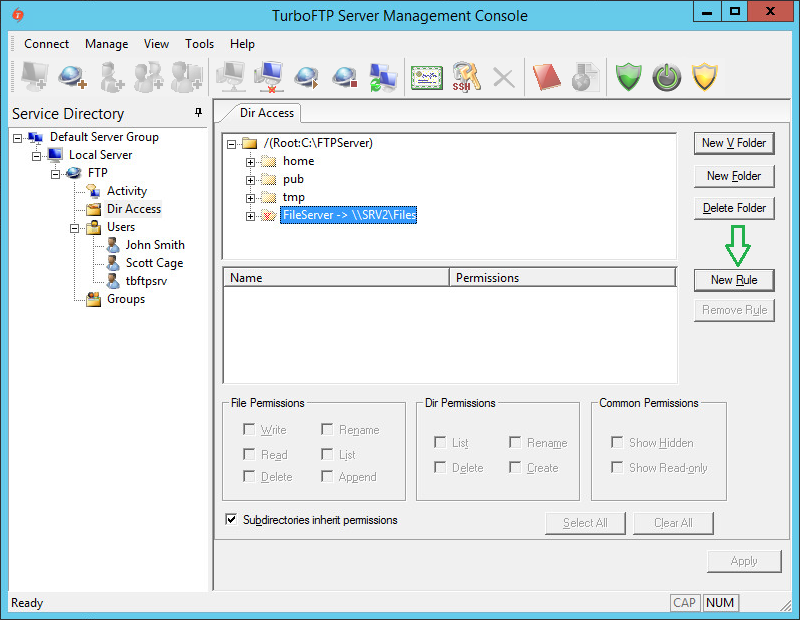
As we have permissions inheritance disabled at the root level, we need to add someone to the list of VFolder permissions. To do so, click the newly created VFolder and then the Add Rule button.
-
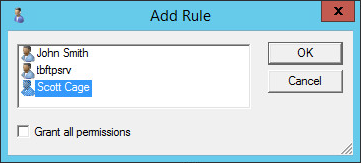
Select a user and click OK.
-
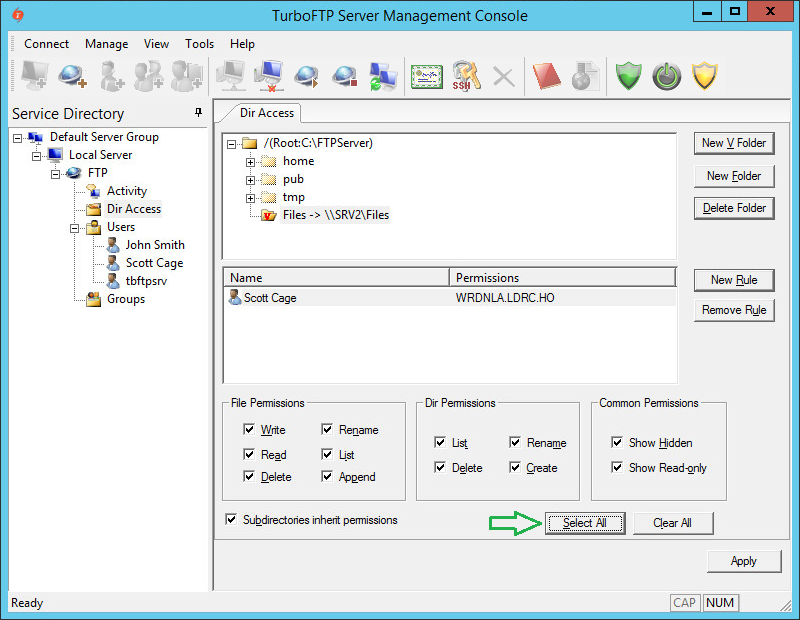
Click on the user again and press the Select All button to give him all permissions to the VFolder.
-
Save changes by pressing the Apply button.
Configuring TurboFTP Client
-
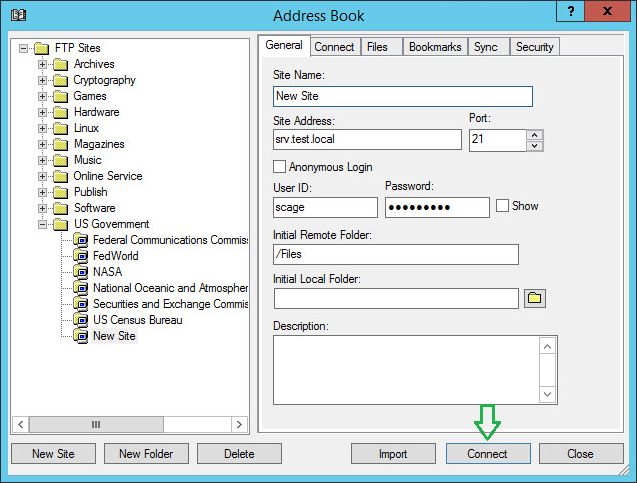
Open TurboFTP Client Address Book, select New Site -> Standard FTP, provide Site Name, Address, User ID, Password, and Initial Remote Folder, and click Connect.
-
You will be connected to the FTP server, and the Initial directory is set to Files, which is the network share on the file server.
