Advanced Auto Upload (in Sync Service Module)
The "Basic Auto Upload" feature in the GUI TurboFTP program has its limitations. The Advanced Auto Upload feature offered by the TurboFTP Sync Service Module addresses the shortcomings of the "Basic Auto Upload" feature and is more powerful. See the comparison table below for details.
| Basic Auto Upload | Advanced Auto Upload | |
|---|---|---|
| NT Service Support | Requires one instance of TurboFTP GUI program running on Desktop. It can't run as an NT service. | Can be run as NT service and doesn't require TurboFTP GUI program running or even user login. |
| Scalability | Monitors only one local folder. | Can monitor multiple local folders by running multiple Auto Upload Tasks at the same time. |
| Monitor Sub Folders? | Yes. | Yes. |
| Can it be configured to act on new files only, updated files only or both? | Yes | Yes. |
| Filters | Yes, include and exclude filters. | Yes, include and exclude filters. |
| Does it create sub-directories on the remote server when new sub-directories are created under the local folder being monitored? | Yes | Yes. |
Create an Advanced Auto Upload Task
Add a new Advanced Auto Upload Task by pressing the Add button in Task Scheduler.
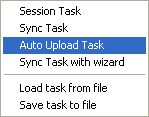
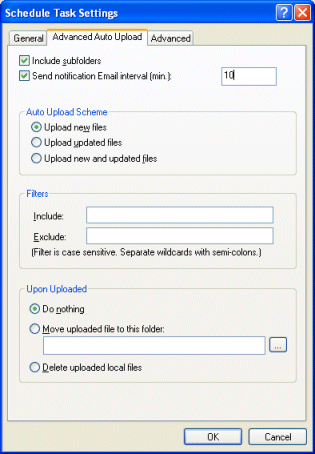
Fig. Sync Task Options
The [Include subfolder] Option
If this option is selected, all sub-directories of all levels under the parent folder being watched will be watched for update too.
Send notification Email interval (min.)
If the option is selected, an email report will be sent at the specified interval, which includes information on task completion, like the total number of files and the total size transferred. The list of the files that have been transferred can be included too.
How to stop an AAU task
To stop an AAU task, you need to disable the AAU task explicitly; unlike Sync Task and Session Task disabling the Task Scheduler does NOT stop any AAU tasks. To resume an AAU task, re-enable it.
Dependency
AAU task has no dependency on any other task, nor can any other non-AAU task have a dependency on it.